Restaurant POS setup: from menu to first shift.
Configure the outlet in the order its work depends on. Then prove that a captain, kitchen and counter can finish one awkward order together before customers rely on it.
By Venditas · Published 26 October 2026 · AI-assisted guide. Steps checked against current product and printing documentation. The order below is a training example.
Prepare the menu and bill settings first, then tables, staff roles, paired devices and printers. Run a sample order from a captain's phone through the kitchen, bill, payment and day close. Check actual paper output and a backup procedure. Start live service only when the people responsible for each step can repeat it.
Gather the information before opening setup
Choose one person to maintain the setup list and one person to approve the final bill settings. This can be the same owner in a small outlet. Prepare:
- A usable menu: name, category, selling price, portions, add-ons and the kitchen station for each dish. Keep a copy of the original file.
- Bill details: the business name, address, relevant registration details and the tax treatment confirmed with your accountant. A registration number alone is not a reason to copy another restaurant's settings.
- Service layout: the names staff actually use for tables, takeaway, delivery and kitchen stations.
- People and permissions: who takes orders, receives payment, changes prices, cancels a sent item and checks the close.
- Equipment: the exact printer model, connection, paper width, counter device and staff phones. Check internet and power where each device will be used.
If replacing another system, first follow the POS switching plan. A menu import is not a migration of historical bills, unsettled dues or every customer's account.
1. Build and check the menu
In Venditas, start in Setup → Menu. Use the sample menu to understand the screen, then enter or import your own menu using the supported CSV format. Keep a source file and work on a copy. Check the import preview and fix duplicates, price mistakes and portion mappings before confirming.
Do not put “Half Paneer” and “Full Paneer” into a menu by habit if you want staff to choose portions under one dish. Decide that structure first. Set add-ons where the cashier expects them and map dishes to the correct station using Goes to. The station determines ticket grouping; it does not install a printer.
| Training item | Price before any tax | Station | Check |
|---|---|---|---|
| Paneer Tikka | ₹280 | Kitchen | Correct price and station |
| Butter Naan | ₹50 | Tandoor | Quantity changes and later KOT sends |
These are invented training values, not a recommended menu or data from a customer. In your real trial, choose dishes with the portions and instructions staff most often get wrong.
2. Set bill details, tables and staff
Complete Setup → Bill & tax using your outlet's details and confirmed settings. Print or preview the result and check the actual name, address and payment details. Use the bill-format guide for the fields to discuss with your accountant.
Add tables using familiar labels such as T1 and Garden 4. Give staff separate identities and the appropriate role. A shared counter login may be convenient during setup, but it prevents you from knowing which person made a change. Staff can choose English, Hindi or Marathi. Verify the manager-only actions using a captain login, not just the owner's account.
3. Pair the devices and choose the printing device
Use Setup → Devices to pair the phones, tablet and counter computer that will use the POS. Confirm that the captain can open the intended outlet and that the kitchen sees the same order. A phone that can browse a website is not by itself a configured counter printer.
Venditas prints through the browser and the device's printer setup. Configure paper width under Setup → This device. First print a test from the operating system, then a bill and KOT from the browser. A USB printer connected to a Windows counter belongs to that counter's setup; it is not automatically a Bluetooth printer available to every captain.
For automatic KOTs on one counter device, enable Print KOTs automatically on this device. Leave Only print KOTs for empty if that device should handle every station. Keep automatic printing off on other devices for those stations. Keep the chosen device open, logged in and awake; use the required idle-lock setting. Follow the full printer guide with the founders for your browser and printer.
Android Bluetooth printing may involve a third-party print service and a confirmation tap; its availability and charges depend on the app. Do not purchase equipment on the assumption that it will print silently from every phone. The browser cannot confirm that paper physically came out, so a test must include reading the actual slip.
4. Run a captain → kitchen → counter example
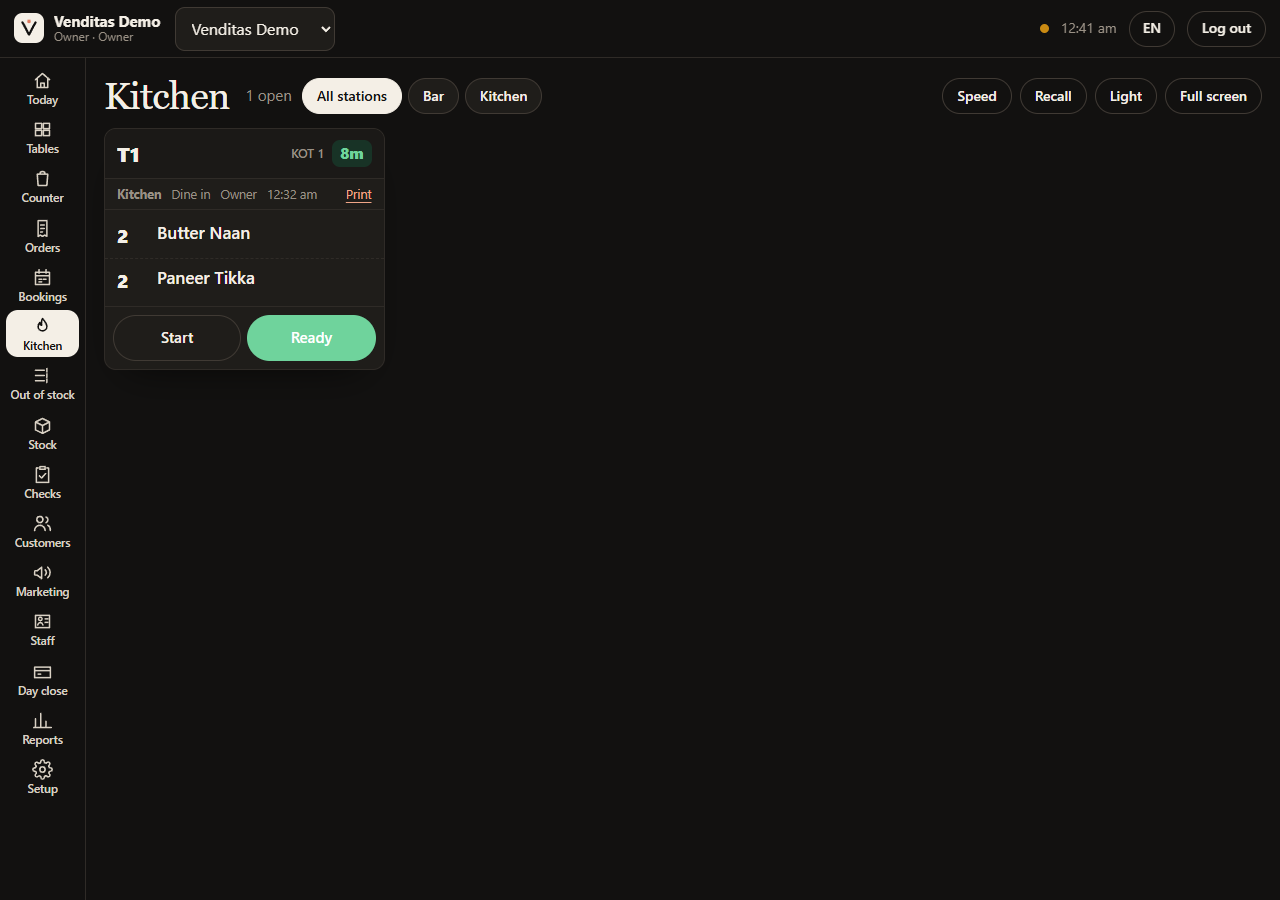
- The captain opens T1, adds one Paneer Tikka and two Butter Naans, and sends the KOT. The initial food total is ₹380 before tax or other settings.
- The kitchen checks table, quantity, station and any preparation note. Staff explain which slip or screen belongs to each station.
- The captain adds one more Butter Naan and sends again. The later ticket should contain that new item rather than repeat the whole original order. The food total is now ₹430 before tax.
- Practice a permitted cancellation and check the kitchen instruction and manager's record. Discuss who may do this during service.
- The counter prints a bill, records the intended payment method and checks it in the closing report. Confirm the money using your actual bank/payment arrangement; displaying a UPI QR is not payment confirmation.
Use a clearly separated practice setup. Do not create pretend paid restaurant transactions in a live outlet merely to follow this article. If testing alongside an existing system, appoint one system to send the real kitchen instructions and collect the real payment.
5. Use ten acceptance tests before opening
| Test | Pass condition to record |
|---|---|
| Menu and portions | Staff find the right dish and obtain the expected price without an unexplained override |
| Bill settings | The owner/accountant accepts a bill made from the outlet's actual settings |
| Captain order | An order sent from the captain device reaches the intended kitchen/counter workflow |
| Later item | Only newly sent dishes appear in the later ticket |
| Paper output | The correct printer produces a readable bill and KOT at the selected paper width |
| Permissions | A captain is blocked from a manager-only action, and an authorized change has a record |
| Payment | A practice split payment reconciles to the bill; staff know how to confirm real receipt |
| Day close | Opening cash, practice collections and adjustments explain the closing amount |
| Connection/printer interruption | Staff can explain the fallback, recover without duplicate kitchen work and verify actual output |
| Handover | The next shift can repeat the steps and knows who to contact |
Do not mark the interruption test passed merely because a page remains open without internet. Live updates, saving an order, printing and recovering are different checks. We do not present offline billing as verified at a restaurant. Start with a reliable connection and agree a fallback with the founders.
Decide whether to go live
Record each failed test, the person fixing it and the retest result. Do not start the first rush with unresolved bill totals, missing kitchen tickets, an untested printer or staff who cannot close a table. Choose the quiet service window after the checks pass. There is no universal ten-minute installation time: a small menu on existing equipment and a multi-station outlet need different preparation.
Bring the setup questions to a demo
See the sample-data screens, then share your menu, devices and printer model with the founders. Setup is free for the first 100 restaurants. The POS is 30 days free, then ₹3 per paid bill; check the full price and monthly examples.
Preparation and limits
This AI-assisted guide was checked against Venditas's current menu, device, pricing and printing documentation on 26 October 2026. The screenshot comes from a local sample outlet. Browser tests use simulated printer calls; successful paper output on your equipment must be checked at the counter. For a complete vendor comparison, use the selection checklist; for the closing method, see the cash-tally guide.
Quick answers
What should I prepare before setting up restaurant billing software?
Prepare your menu with portions and add-ons, table names, business/bill details, staff roles, devices, printer model and a reliable internet connection. If switching, preserve exports from the old POS before changing anything.
Can a captain's phone send KOTs to a counter printer?
In Venditas, the captain sends the order and a configured counter device handles automatic KOT printing. The printer is configured on that counter device. Keep one automatic-printing device per station, open and logged in, and verify actual paper output before live service.
Why does adding an item not print a KOT?
An unsent item is still in the cart. The captain must use Send KOT. In the practice check, send the original order, then add and send another item; the later ticket should contain the newly sent dishes.
How long does restaurant POS setup take?
There is no reliable universal time. Menu size, portions, tax settings, devices, printers and staff practice determine the work. Choose a quiet setup window and go live when the acceptance tests pass, not merely when an estimated time has elapsed.
Does Venditas support automatic printing on every phone?
Do not assume that. Automatic counter printing uses a configured device and browser/OS printer setup. Android Bluetooth printing can require a print service and a confirmation tap; third-party app terms vary. Check your actual device and printer with the founders before buying hardware.
See it with your restaurant in mind.
Ask the founders to show an order, a KOT and a bill on a call. Tell us your bill count and printer model; we’ll work out the cost and setup with you. 30 days free, then ₹3 per paid bill. First 100 restaurants: we set it up for you, free.